How to Back Up Your Data Easily
Backing up your data doesn’t have to be complicated. This guide explains simple, effective methods to protect your files on computers, phones, and tablets.
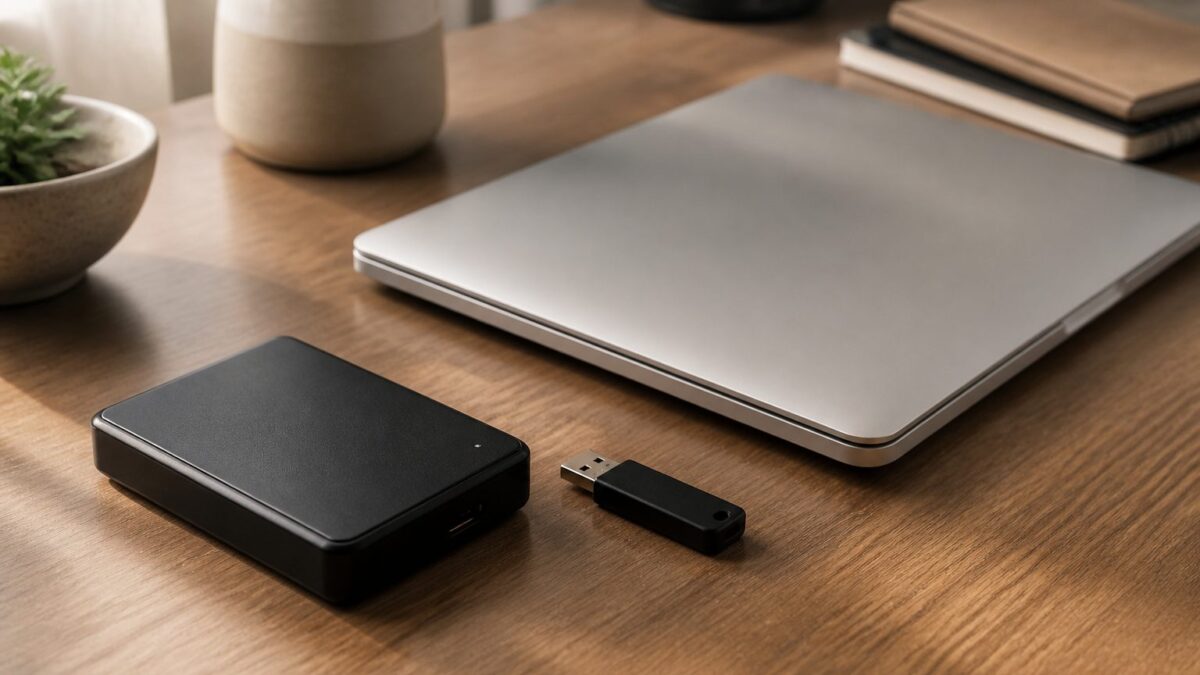
Backing up your data is one of the simplest ways to prevent loss of important files, photos, and documents. With the right approach, you can set up reliable backups in minutes and have peace of mind.
This guide covers practical, easy-to-follow methods to back up data on computers, phones, and tablets. Whether you use Windows, Mac, Android, or iOS, you’ll find clear steps for cloud and local backups, automation tips, and common mistakes to avoid.
Why you need to back up your data
Backing up your data is essential because digital information is vulnerable in many ways, regardless of how diligent you are with device care and security. Hard drives, whether traditional or solid-state, can fail unexpectedly—studies suggest that even high-quality drives can have a 1-5% annual failure rate. Smartphones and laptops are also at risk of loss, theft, or accidental damage, especially when traveling or commuting. For example, in the UK, thousands of laptops are reported lost or stolen from public transport each year.
Accidental deletion is another common cause of data loss. Whether you’re editing a document, organizing photos, or clearing out old files, it’s easy to make a mistake that’s hard to undo. Malware, including ransomware, is a growing threat worldwide; attacks can encrypt or destroy your files, demanding payment for access. In countries like the United States, ransomware attacks on individuals and small businesses have increased sharply, while in regions with less robust cybersecurity infrastructure, recovery options may be limited or costly.
Backups provide a safety net, allowing you to recover your data quickly and with minimal disruption. This is especially crucial for irreplaceable items—family photos, personal journals, creative projects, or legal and financial documents. For small businesses, losing client files or transaction records can result in regulatory fines or loss of trust. Cloud storage providers now offer affordable plans globally—Google Drive, for instance, starts at a few dollars per month for 100GB, and similar pricing is found on services like Dropbox or iCloud, making protection accessible to most users.
Ultimately, a reliable backup saves you time, money, and emotional stress. It ensures that your digital life—whether personal memories or critical work documents—remains intact, even when the unexpected happens.
Types of backup: Cloud vs local
There are two main ways to back up your data: cloud backups and local backups. Each has its own strengths, and many people use both for extra security.
- Cloud backup: Your files are stored on remote servers managed by a provider. Access your data from anywhere with internet access. Common services include Google Drive, iCloud, OneDrive, and Dropbox.
- Local backup: Your files are stored on a physical device you control, such as an external hard drive, USB flash drive, or network-attached storage (NAS). No internet needed for access or recovery.
Using both methods is called a “hybrid backup.” This approach protects you if your device or local backup is lost, damaged, or stolen, and adds a layer of security if you lose access to your cloud account.
How to back up a Windows computer
- External drive backup: Use Windows’ built-in File History or Backup and Restore.
- Plug in an external hard drive or large USB drive.
- Go to Settings > Update & Security > Backup.
- Select Add a drive and choose your device.
- Turn on Automatically back up my files for regular backups.
- Cloud backup: Sign up for a cloud storage service.
- Install the desktop app (e.g. OneDrive, Google Drive).
- Drag and drop files or set up automatic folder sync.
Windows users in the US, UK, and Europe can use OneDrive (5GB free), while Google Drive and Dropbox are available worldwide. Indian users can also access these services, but may find local providers with regional pricing.
How to back up a Mac
Backing up a Mac is straightforward thanks to built-in tools and a wide range of cloud services. Here’s a step-by-step guide, with practical notes for users in different regions and situations:
- Time Machine backup:
- Connect an external hard drive or Apple Time Capsule. Drives from brands like Seagate, Western Digital, or LaCie are widely available, with prices starting around $50 (USD) for 1TB in the US or €60 in Europe. Time Capsule is less common now, but any compatible external drive will work.
- Go to System Settings > General > Time Machine on macOS Ventura or later (older versions: System Preferences > Time Machine).
- Select your external disk and turn on automatic backups. Time Machine will now back up your entire system hourly, daily, and weekly, keeping versions for easy recovery.
- Cloud backup:
- Sign in to iCloud under System Settings > Apple ID > iCloud. Enable iCloud Drive and, if desired, Desktop & Documents Folders to automatically sync key files. Note that iCloud’s free 5GB is quickly filled; paid plans start at $0.99/month for 50GB in the US, with similar pricing in Europe and Asia.
- Alternatively, use cross-platform services like Google Drive, Dropbox, or Microsoft OneDrive. These are especially useful if you use Windows or Android devices as well. For example, Google Drive offers 15GB free, while Dropbox starts at 2GB but can be expanded with referrals or paid plans.
Time Machine is included with all modern Macs and is highly reliable for both full-system and incremental backups. For users in areas with unreliable internet, local Time Machine backups are especially valuable. Cloud services provide offsite protection and easy access across devices. Family sharing options can help reduce costs; for instance, Apple’s iCloud+ plans allow up to six family members to share storage. Regularly check that your backup drive has enough free space, and replace it every few years to avoid hardware failures.
How to back up your phone or tablet
Mobile devices are often lost, stolen, or damaged. Backing up ensures you don’t lose contacts, photos, and app data.
- iPhone/iPad:
- Go to Settings > [Your Name] > iCloud > iCloud Backup.
- Turn on iCloud Backup. Connect to Wi-Fi and tap Back Up Now.
- For local backup, connect to a Mac or PC and use Finder/iTunes to create an encrypted backup.
- Android:
- Go to Settings > System > Backup.
- Turn on Back up to Google Drive (or Samsung Cloud for Samsung devices).
- For local backup, connect to a computer and copy files directly.
Cloud backup options are available in most countries, though some services may have regional restrictions (e.g., Google Drive in China). For large photo libraries, consider transferring to a computer or using an external drive with a mobile adapter.
Automating your backups
Manual backups are easy to forget. Automation ensures your data is protected without extra effort.
- Enable automatic cloud sync: Most cloud apps can sync selected folders or your entire library. Set this up during the initial installation or in app settings.
- Schedule local backups: Built-in tools like Windows File History or Mac Time Machine can run on a schedule. Connect your backup drive regularly or leave it connected for ongoing protection.
- Check backup status: Review your backup app or system notifications to confirm backups are running as expected. Some tools can email you alerts if backups fail.
Automated backups are available on most devices worldwide. For extra security, consider using both cloud and local backups.
How to restore your data from a backup
A backup is only useful if you can restore your data quickly when needed. Here’s how to recover files from common backup methods:
- Cloud backup: Log in to your provider’s website or app. Download individual files or restore entire folders. Some services keep deleted files for a set period (e.g., 30 days).
- Windows File History/Backup: Open the backup tool, browse versions, and select files to restore. You can restore to the original location or a new folder.
- Mac Time Machine: Open Time Machine, navigate to the date you want, and click Restore. You can recover files, folders, or the entire system.
- Mobile devices: During device setup, choose to restore from a cloud backup. For local backups, connect to your computer and use the backup software to restore data.
Test your restore process occasionally so you know what to expect in an emergency.
How much does backup cost?
The cost of backing up data depends on the method and how much storage you need. Here’s a general guide to current prices (2024):
| Backup Method | Typical Cost (per year) | Storage Limit | Pros | Cons |
|---|---|---|---|---|
| External Hard Drive | $50–$120 (£40–£95/€45–€110/₹4,000–₹10,000) | 1–4 TB (one-off cost) | Fast, no subscription, private | Can fail, physical theft/loss |
| USB Flash Drive | $10–$40 (£8–£32/€9–€36/₹800–₹3,300) | 32–256 GB (one-off cost) | Portable, cheap | Limited space, easy to misplace |
| Cloud Storage (Google Drive, OneDrive, iCloud) | $20–$120 (£16–£95/€18–€110/₹1,600–₹10,000) | 100 GB–2 TB (per year) | Accessible anywhere, automatic | Ongoing fee, privacy concerns |
| Network Attached Storage (NAS) | $150–$400+ (£120–£320+/€135–€360+/₹12,000–₹35,000+) | 2–10 TB+ | Centralised, multi-device | Setup needed, higher upfront cost |
Prices can vary by country and currency. Some providers offer discounts for students or families. Free cloud storage is limited (usually 5–15 GB), but enough for essential documents and photos.
Choosing the right backup method for you
Selecting the most suitable backup method depends on your specific circumstances, including the amount of data you have, your budget, internet reliability, and how much convenience you want. Here’s how to make an informed choice, with examples and guidance for different users around the world:
- Most home users: A dual approach is usually best—combine a cloud service (like Google Drive, iCloud, or Dropbox) with a local backup on an external hard drive or USB stick. For example, a family in Australia might use a 2TB external drive (about AUD $80) for Time Machine or File History, while syncing essential photos and documents to Google Drive for remote access and disaster protection.
- Businesses: Companies should consider automated cloud backup solutions with features like versioning, encryption, and compliance support (such as GDPR in Europe or HIPAA in the US). Services like Backblaze, Acronis, or Microsoft 365 offer business-grade options. Local backups—on servers or NAS devices—provide an extra layer for quick recovery after incidents like ransomware attacks or accidental deletions.
- Users with limited or expensive internet: In rural areas of Canada, sub-Saharan Africa, or parts of Southeast Asia, internet can be slow or costly. In these cases, prioritize regular local backups to external drives or SD cards, and use cloud storage only for your most vital files when you have access to a reliable connection. Some cloud services, like Dropbox, allow selective sync to minimize bandwidth usage.
- Frequent travelers: If you move between countries or spend a lot of time on the road, cloud backups are essential. They protect your data if your laptop or phone is lost or stolen abroad. For example, a digital nomad working from cafés in Spain or Thailand can use OneDrive or Google Drive for continuous backup, ensuring important files are always accessible regardless of location.
Regardless of your chosen method, review your backup plan every few months. Add new devices as you acquire them, increase storage capacity as your data grows, and adjust schedules or services if your needs change. This proactive approach keeps your backup system effective and reliable, wherever you are.
Common backup mistakes to avoid
Even with the best intentions, many people make mistakes that undermine their backup efforts. Being aware of these common pitfalls can help you create a more robust and reliable data protection strategy:
- Relying on a single backup: Using only one backup location—whether it’s a cloud service or an external drive—leaves you vulnerable if that backup fails or is compromised. For example, if your cloud account is hacked or your external drive is damaged by a power surge, you could lose everything. The widely recommended 3-2-1 rule suggests having three copies of your data, on two different media, with one stored offsite.
- Neglecting automation: Manual backups are easy to forget, especially during busy periods or travel. In countries where power outages are frequent, like South Africa or India, relying on manual backups can mean missing critical updates. Set up automated schedules using built-in tools (such as Windows File History, macOS Time Machine, or third-party apps) to ensure regular, consistent backups.
- Failing to test restores: Many users discover too late that their backups are incomplete or corrupted. At least once a year, practice restoring a random file or folder to confirm your backup works. This is especially important for businesses, where a failed restore could mean lost revenue or legal issues.
- Missing important files: It’s common to overlook key folders, such as email archives, desktop files, or application data. Double-check your backup settings to include all essential data. For example, in some European countries, tax authorities require digital copies of receipts, so these should be backed up as well.
- Storing backups with your main device: Keeping your backup drive next to your computer exposes both to risks like fire, flood, or theft. If you live in an apartment or shared housing, consider a locked cabinet or offsite location. Some people in earthquake-prone regions use bank safety deposit boxes or cloud services for added protection.
Avoiding these mistakes ensures your data remains safe and recoverable, no matter what happens.
Quick backup checklist
Backing up your data is more effective and reliable when you follow a structured approach. Here’s an expanded checklist to guide you through the process, with practical steps and examples that apply to users worldwide:
- Identify critical data: Start by listing what needs protection. This typically includes personal documents (such as tax records, contracts, and scanned IDs), photos and videos, email archives, and contact lists. In some countries, like Germany, digital copies of official documents are commonly kept; in others, such as India, family photos are often prioritized due to the prevalence of smartphone photography.
- Choose backup methods: Decide between local options (like external hard drives, USB sticks, or network-attached storage) and cloud services (such as Google Drive, iCloud, OneDrive, or regional providers like Baidu Cloud in China). Many users opt for a hybrid approach: for example, keeping an external drive at home and syncing essential files to the cloud for redundancy.
- Set up automatic schedules: Configure your backup software or cloud service to run regular backups—daily or weekly is typical. On Windows, File History can be set to back up hourly; on Macs, Time Machine defaults to hourly backups. Popular cloud services also offer automatic syncing, reducing the risk of forgetting.
- Test your backups: At least once a year (or after any major change), try restoring a file or folder to ensure your backups work. This step is often overlooked, but it’s critical—many people discover only after a loss that their backups were incomplete or corrupted.
- Store local backups securely: If you use physical drives, keep them in a location separate from your main device—such as a locked drawer, a safe, or even a trusted friend’s home. In places prone to natural disasters (like Japan or the US Gulf Coast), consider off-site storage or a fireproof safe.
- Review and update your backup plan: As your digital life grows—new devices, more files, or changing work needs—revisit your backup strategy. For example, if you start working remotely or traveling more, increase the frequency of cloud backups or add a portable SSD to your routine.
Following these steps helps ensure your data remains safe, accessible, and up to date, no matter where you live or how your needs evolve.
Frequently asked questions
How often should I back up my data?
Ideally, set backups to run automatically at least once a day for important files. For less critical data, weekly or monthly backups may be enough. More frequent backups reduce the risk of losing recent work.
Is cloud backup safe?
Major cloud providers use strong encryption and security practices. However, no system is completely immune to breaches. Use strong, unique passwords and enable two-factor authentication for added security.
Can I back up data from multiple devices to one location?
Yes, most cloud services and network-attached storage devices support backups from multiple computers or mobile devices. Just ensure you have enough storage space and set up each device individually.
What happens if my backup drive fails?
If your only backup fails, you could lose your data. That’s why having both local and cloud backups—or two separate local drives stored apart—is best. Check your backup devices regularly for errors or signs of failure.
Do I need to back up everything on my device?
No, focus on irreplaceable data: documents, photos, videos, and contacts. System files and apps can usually be reinstalled. Exclude large, easily replaceable files to save space and speed up backups.
Note: This article provides general information. Prices and rules vary by country and provider. Always check current terms and, for sensitive data or business use, consider consulting a qualified IT adviser.